10 Interactive Classroom Technology Tools for Teachers
Keeping students engaged throughout a lesson can be difficult. While some students readily answer questions, others may not feel comfortable enough to participate openly in class. Luckily, interactive classroom technology tools give educators more ways to involve the whole class, from polls and quizzes to shared diagrams and digital activities.
But to benefit from these tools, you need to first make sure that they support a clear learning goal. To meet that goal, the tool you choose should help your students practise a skill, create something, collaborate with their classmates, or demonstrate what they understand, all while remaining manageable for the teacher.
In this guide, we’ll explore 10 interactive classroom technology tools, explain how each one can be used, and help you choose the right option for your learning goal.

What Are Interactive Classroom Technology Tools?
Interactive classroom technology tools are apps, platforms, and digital resources that teachers can use to involve students directly in lesson activities. Teachers may invite students to answer a poll, complete a quiz, draw on a shared slide, contribute to a discussion, build a mind map, or explore multimedia content.
What makes these tools interactive is the role students play in the activity. For example, instead of simply watching a video, they might answer questions at certain points to check their understanding. Similarly, they could use a digital whiteboard to contribute their own ideas rather than only viewing the teacher’s notes. Interactive tools not only give students something engaging to do with the lesson content, but they also help teachers see how well students understand it. These tools can be used in traditional classrooms as well as hybrid and remote classes.
Benefits of Interactive Technology in the Classroom
Imagine asking your class a question and seeing everyone’s responses appear on your screen, rather than hearing from only a few students. Interactive technology makes this possible, giving teachers a clearer picture of what students understand while allowing more students to participate. And that’s just one example of how these tools can support classroom activities.
Here are some of the main benefits for both teachers and students:
- More student participation: Live polls, quizzes, and open-ended questions give students different ways to contribute, including those who may not feel comfortable speaking in front of the class.
- Real-time insight and feedback: Teachers can view students’ responses as students complete an activity, identify concepts that need further explanation, and provide feedback.
- Easier collaboration: Many interactive tools, such as shared boards, documents, and diagrams, allow students to exchange ideas and complete group activities together.
- More ways to demonstrate learning: Students can show what they know through written answers, recordings, drawings, presentations, and other formats rather than relying on one type of response.
How to Choose the Right Interactive Classroom Tool
With so many interactive educational tools available, it can be difficult to know which one will suit your class. The best choice is not necessarily the platform with the most features. It is the one that supports your learning goal, works for your students, and can be used without taking too much time away from teaching.
- Start with the learning objective: Decide what students need to do during the activity. They may need to answer questions, practise a skill, or work together to create something. Once the goal is clear, you can choose a tool that supports that action directly.
- Consider student access: Find out if students need individual accounts or can join without signing in. Also check whether they will work alone or in groups. After creating an activity, you can usually find a join link or class code in the tool’s sharing settings. You can post the link in the school’s LMS or display the code in class.
- Consider age and accessibility: The tool and its activities should be suitable for your students’ age and abilities. Look for features such as captions, keyboard navigation, adjustable text, language options, and different ways to respond. These features can help students with different needs participate in the activities.
- Review compatibility and privacy: Make sure the tool works with your school’s browsers, devices, and learning management system. You should also review what student information it collects, how that information is stored, especially if students need to create individual accounts.
- Estimate the preparation time: Consider how long it will take to learn the tool and create the activity, compared with the value it adds to the lesson. To cut down on preparation time, look for tools that provide templates and reusable activities, especially if you plan to use it regularly.
10 Interactive Classroom Technology Tools
With these factors in mind, you can start choosing tools based on what you want students to do. Some are designed for quick responses and live participation, while others support collaborative work, practice activities, or the creation of complete interactive lessons.
The table below provides a quick overview of all ten tools. Start with your classroom goal, then compare the preparation time and student requirements to narrow the list to two or three suitable options.
| Tool | Main purpose | Best classroom use | Preparation time |
|---|---|---|---|
| Kotobee Author | Create reusable interactive ebooks with multimedia and quizzes | Interactive lessons, digital textbooks, and independent study | Medium |
| Pear Deck | Add interactive questions and activities to presentation slides | Live presentations and self-paced slide lessons | Low |
| Wooclap | Collect live responses through polls and quizzes | Presentations and class discussions | Low |
| Socrative | Check understanding through quizzes and exit tickets | Quick assessments before, during, or after lessons | Low |
| Classkick | Monitor students’ progress and give feedback | Guided practice and step-by-step problem-solving | Medium |
| Coggle | Create collaborative mind maps and diagrams | Brainstorming, concept mapping, and group planning | Low |
| Blooket | Turn questions and review activities into games | Warm-ups, revision, and homework | Low |
| Genially | Create interactive presentations and visual activities | During class or self-paced study | Medium |
| Explain Everything | Explain concepts using a digital whiteboard | Live demonstrations, collaborative activities, and recorded explanations | Low–Medium |
| Goosechase | Create interactive scavenger hunts | Field trips, classroom stations, and group activities | Medium |
1. Kotobee Author

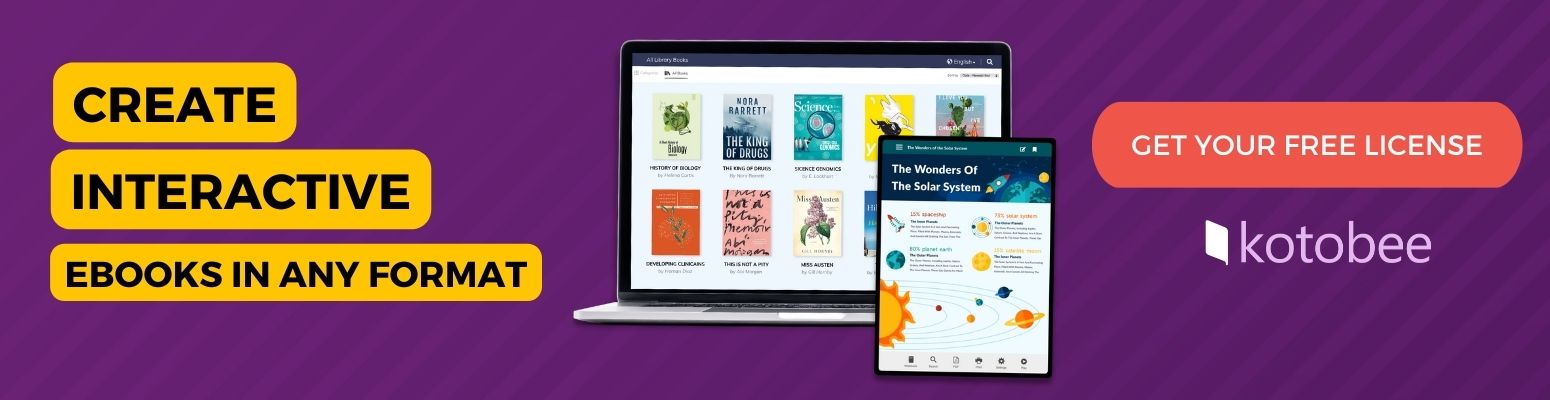
Kotobee Author is a desktop authoring tool for creating interactive ebooks and learning materials. Using Kotobee, you can combine text with videos, audio, images, quizzes, and many other activities in one educational resource.
When the ebook is ready, you are able to export it as an EPUB file, integrate it with your school’s LMS through SCORM or LTI, or publish it online and share a link with students. Depending on the format, your students can use the ebook during lessons or revisit it later for independent study.
A science teacher, for instance, can create an interactive ebook about space, and students can explore planets and learn about space by watching videos, learn information about each planet by clicking on it, and answer questions without having to keep switching from one resource to another.
- Best used for: Creating interactive textbooks and workbooks. It can also be used to create self-paced learning materials that combine text, images, audio, video, and quizzes. These materials can be updated and reused with different classes as well.
- Pricing: A free Author license is available, but some export, app, security, and publishing options require a paid license.
- Compatibility: Kotobee is available for Windows, macOS, and Ubuntu. Ebooks can be exported as EPUB files, published as web, desktop, or mobile apps, or integrated with an LMS using SCORM or LTI (xAPI).
2. Pear Deck

Pear Deck lets you convert presentations created on Google Slides and PowerPoint Online into interactive lessons. You can do this by adding multiple-choice questions, drawing activities, and draggable elements to existing slides.
You need a Google or Microsoft account to start a Pear Deck lesson. After you’ve created the questions, you can share the session link or code with your students. They don’t need their own accounts to participate; each student only needs an internet-connected device to give answers individually. As students respond, you will be able to see their answers appearing on your screen, so you can check whether they understood the lesson or not.
For example, an English teacher can put a paragraph in a Pear Deck presentation and ask the students to mark its main idea using the drawing tool. The teacher could then show a couple of responses anonymously and discuss them with the class before continuing the lesson.
- Best used for: Slide-based lessons, quick checks for understanding, and guided discussion.
- Pricing: The Teacher Free plan allows for core interactive questions, a student-paced mode, and anonymous joining. The Teacher Premium plan, on the other hand, adds drawing and draggable activities, advanced feedback and reporting tools, and extra lesson management features.
- Compatibility: Works with Google Slides and PowerPoint Online in supported browsers.
3. Wooclap
You can use Wooclap to add polls, quizzes, word clouds, and other question types to a live lesson. After adding the questions to a specific activity, you can share the code, link, or QR code of the session with your students. All they need to access the questions is an internet-connected device.
Your students can join in a browser without having to create new accounts. Just keep in mind that each student needs a separate device to respond individually, though pairs can share one when the activity allows it. As they respond to each question, their answers appear in real time, so you can check understanding and invite more students to participate. You can also review the results later after the class is over.
Here’s an example of how Wooclap can be used: A history teacher could begin a lesson by asking students to describe an important event in one word. Wooclap can then arrange the students’ responses in a word cloud, giving the class a visual image that the teacher can use as a starting point for further discussion.
- Best used for: Live polling, word clouds, discussion prompts, and large-group participation.
- Pricing: The Starter plan is free and allows up to five active questions; paid education plans remove that limit and add advanced features such as more active questions, attendance tracking, and detailed reports.
- Compatibility: Browser-based, with integrations for PowerPoint, Google Slides, Microsoft Teams, Zoom, and several LMSs; some integrations are available only on paid plans.
4. Socrative

This tool is made specifically for assessments and quick checks of understanding. A teacher can make use of it before, during, or after a lesson. You can use it to create quizzes, ask students individual questions, or use exit tickets (short activities completed at the end of a lesson) to see what they learned and understood from it. The Space Race feature in Socrative allows you to create team quiz games, which let groups of students compete by answering the questions correctly.
To participate, the students enter the teacher’s room name or scan a QR code. Your students don’t need accounts in Socrative, and each one should use his or her own internet-connected device so you can receive individual answers. Answers can be graded automatically, with results appearing in real time. You can also review and download reports afterward.
At the end of a history lesson, for example, a teacher could use an exit ticket to ask students what they learned and include a question about the causes of an important event. Their responses can show which concepts they understood and which ones may need to be revisited in the next lesson.
- Best used for: Quizzes, quick checks of understanding, exit tickets, and deciding what to review or explain again.
- Pricing: The free plan includes five quizzes, one room, up to 50 students per activity, and 30-day report history. Paid plans add more rooms, saved quizzes, longer history, and advanced reporting features.
- Compatibility: Works in modern HTML5 browsers and on iOS and Android devices.
5. Classkick
Created for guided practice and real-time feedback, Classkick allows you to create or upload assignments and watch students complete them in real time. Students can respond by typing, drawing, adding images, or recording audio.
To begin an activity, you assign it to a class list and share the generated class code. Students can join using the code and a username, and use separate devices to work independently. From one screen, you can monitor everyone’s progress and leave feedback directly on individual assignments. You can also reopen completed assignments to review students’ work later.
Here’s an example to understand how this tool works. In a math lesson, students could use Classkick to solve several problems and show each step of their work. As they work, you can identify where a student has made a mistake and add a written or drawn hint directly to the assignment. The student can then use this feedback to correct the mistake before continuing.
- Best used for: Guided practice, digital worksheets, step-by-step problem-solving activities, and immediate feedback.
- Pricing: The free plan includes up to 20 assignment slots and 500 student work pages per month. Paid plans raise these limits and add management features.
- Compatibility: Works in most modern browsers and through an iPad app; teachers can upload PDFs, slides, images, and documents.
6. Coggle

Designed for collaborative brainstorming and mind-mapping, Coggle helps students arrange information visually. They can add branches, images, links, and notes to show how different ideas connect. Several students can edit the same diagram, and the changes appear in real time.
To collaborate, the creator shares an invitation link or QR code, and students sign in using Google, Microsoft, or Apple. One device per group is enough if students are building the map together. The teacher can revisit the finished diagram afterward and use its change history to see how the group’s ideas developed.
In an ecosystem lesson, for example, each group could create a shared mind map with separate branches for animals, plants, climate, or food chains, giving the group one visual summary of the topic.
- Best used for: Brainstorming, group planning, concept mapping, and visual summaries.
- Pricing: The free plan includes three private diagrams and unlimited public diagrams. Public diagrams are discoverable, so use a paid plan or another tool when student work must remain private.
- Compatibility: Coggle works in web browsers. Teachers can share a link to the diagrams, and they can be exported as PDF, PNG, plain-text (.txt), FreeMind (.mm), or Microsoft Visio (.vsdx) files.
7. Blooket
By turning question sets into classroom games, Blooket makes review activities more playful. You can create your own questions or choose from sets made by other users, then select a game mode for students to play live, independently, or as homework.
After you create the ID of the game and share it as a link or QR code, your students can join without needing to create new accounts, but each student usually needs a device to play individually. After the activity is finished, you can view a basic or detailed report, depending on the plan you use. As you create the activity, choose the game mode carefully so that the competition level supports the lesson goal rather than shifting students’ attention entirely to points and speed.
For example, before a geography test, a teacher could create a question set about countries and their capitals. Students would answer the questions while earning points or progressing through a game, allowing them to review the material in a more playful way.
- Best used for: Review games, vocabulary practice, retrieval practice, and homework.
- Pricing: The Starter Plan is free for unlimited question sets and live games with up to 60 players. The Plus Plan raises the general live limit to 300 and adds enhanced reports, although some modes have their own limits.
- Compatibility: Works in a web browser on internet-connected devices.
8. Genially

Built for creating visual and interactive content, Genially allows teachers and students to create interactive presentations, infographics, quizzes, games, and other visual content. Its templates, animations, and clickable elements allow students to reveal and explore information, instead of only moving through static slides.
As a teacher, you need a Genially account; your students, however, can open any presentation through a shared link without needing to create new accounts. They can explore it individually on their own devices or work together in groups. For live sessions, students join using a link, code, or QR code. But to be able to track individual learners, review their answers, and send scores to an LMS, you’ll need paid plans that include these features.
In a geography lesson, for instance, you could create an interactive map with clickable countries. Students could select different countries to reveal facts, images, and questions about each location.
- Best used for: Interactive presentations, maps, choice boards, visual explanations, and student projects.
- Pricing: The free plan includes core interactions and animations, but creations are visible to search engines by default. Premium plans add privacy, activity tracking, downloads, and other education features.
- Compatibility: Runs in a browser and can be shared by link or embedded to a website or LMS. SCORM and LTI integrations are available on higher-tier plans.
9. Explain Everything

Using Explain Everything, you can create an interactive whiteboard that helps you explain ideas, present lessons, and record instructional videos. The whiteboard supports drawings, text, images, documents, audio, and video, while its collaboration tools allow several people to work on it at the same time.
You can display the whiteboard from your own device while students watch. To let students add their own work, share a link or code with them. Each student, or group, needs a device to contribute. They can often join as guests without creating accounts, although a host needs to stay signed in to the project while guests are working on it.
For example, in a math lesson, you could record a short video showing how to solve an equation step by step. During class, your students could also add their own solutions to a shared whiteboard and explain how they reached their answers.
- Best used for: Step-by-step problem-solving, visual explanations, short recordings, and collaborative whiteboards.
- Pricing: The Free Plan includes three projects, one slide per project, and recordings up to three minutes. Larger projects and longer recordings require a paid plan.
- Compatibility: Available in supported browsers and apps for iOS, iPadOS, Android, and ChromeOS. App projects can work offline; the browser version requires internet access.
10. Goosechase

For activities that involve movement and teamwork, you can use Goosechase to create digital scavenger hunts made up of different missions. You can ask your students to answer a question, submit a photo or video, or check in at a particular location.
To join the scavenger hunt, students use a unique link, code, or QR code and can participate as guests without creating accounts. As they complete missions, you can see their work appear on your screen and give them points. You can also look back at their work after the activity ends, as their submissions remain available in Goosechase Studio for you to review after the activity.
During a school field trip, students could work in teams to find certain objects, photograph important exhibits, and answer questions about what they discover. Goosechase can also be used inside the classroom for review challenges that get students moving between stations.
- Best used for: Field trips, station rotation, team challenges, orientations, and movement-based review.
- Pricing: EDU Basic Plan is free for verified K–12 educators and supports up to five teams and one live Experience at a time. School and expanded paid plans raise those limits.
- Compatibility: Students can participate through a web browser or the Goosechase app, which is available for iOS and Android devices, including compatible iPads and Chromebooks.
Conclusion
Interactive technology is most useful when it gives students a clear role in the lesson, whether they are answering questions, sharing ideas, practising a skill, or creating something of their own. So instead of choosing a tool because of its features, start with the learning goal and select the option that best helps students achieve it.
After choosing one learning objective, test one tool through a short activity. Notice if it helps more students participate, gives you useful information about their understanding, and fits naturally into the lesson. If it does, you can gradually use it in other activities or classes.
More from Our Blog